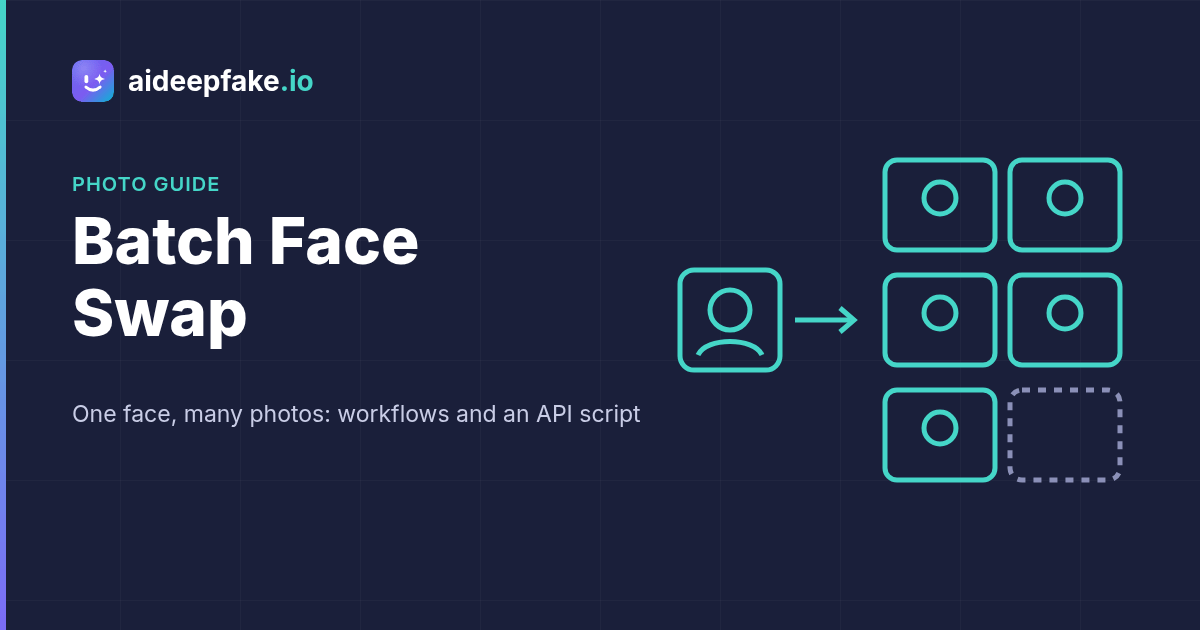
A batch face swap applies the same face to a whole set of pictures instead of one picture at a time: one colleague in every shot from the team offsite, one face across ten meme templates, one model across a set of ad mockups. You choose the source face once, line up the targets, and collect the results together. This guide explains what a batch actually does, how dedicated batch tools compare, and two practical ways to run a batch with aideepfake today: a repeatable workflow in the browser, and a short script against the face swap API. It is also clear about what aideepfake does not do, so you can pick the right tool for your job.
What a batch face swap actually is
The phrase covers two different jobs, and it helps to know which one you need before you start.
- One face, many targets. You have a single source face and a folder of photos. Every photo should come back with that face. This is what most people mean, and it is the case this guide focuses on.
- Many faces, one target. You have one base picture, such as a poster or a group shot, and you want to try several different faces on it to compare. The result is a set of variations of the same scene.
A third job often gets confused with batching: changing several faces inside a single photo. That is a different problem, covered in our guide to multiple face swap. Batching is about the number of files, not the number of faces per file.
Under the hood a batch is not magic. Each target is still processed on its own: the model finds the face, aligns the source to it, blends skin tone and lighting, and writes a new image. A batch tool simply queues those jobs, runs them in parallel where it can, and gives you one download at the end. That matters, because it means the quality of a batch is exactly the quality of a single swap, repeated. If one photo would look bad on its own, it will look just as bad inside a batch.
How dedicated batch tools compare (checked Nov 20, 2026)
Several face swap sites now sell a separate batch mode. These figures come from each vendor's own batch page on November 20, 2026 and can change at any time:
| Tool | Batch size stated on its page | Notes |
|---|---|---|
| Magic Hour | Up to 5 photos per run | Only one side can hold several images: up to 5 targets with 1 face, or 1 target with up to 5 faces. Photos only, no video or GIF batches. |
| VidMage | 5 photos per batch free, up to 50 for subscribers | States 15 free batch runs per day and two modes (many targets, or many faces on one base image). |
| aifaceswap.io | Up to 50 pictures | All targets go to the same face. Asks you to keep the page open while it works. |
| EZFaceSwap | Up to 50 photos | Results download as a ZIP; photos with no detected face are flagged. |
Two patterns stand out. First, the free tiers are small, usually five images, and the larger batches sit behind a subscription. Second, every tool still treats each photo as its own swap, and most of them skip photos where no face is found. So the real advantage of a batch button is convenience: fewer uploads and one download.
Does aideepfake have a batch face swap button?
No. On aideepfake one job takes one source face and one target, either a photo or a video. There is no multi-file upload and no ZIP download, and we do not want to pretend otherwise. What you can do is run the same swap many times quickly, with the same settings, which gets you the same output a batch tool gives you. There are two ways to do it, depending on how many photos you have.
Method 1: a repeatable batch workflow in the browser
For a handful of photos, say up to ten or fifteen, the browser is the fastest route because there is nothing to set up.
- Pick one strong source face. A sharp, front-facing, evenly lit photo with nothing covering the eyes or mouth. Every result in the set inherits its flaws, so this choice matters more than anything else. Our list of realistic face swap tips covers what makes a source photo good.
- Prepare the targets. Use JPEG, PNG or WebP files up to 10 MB each. Crop tightly if a photo contains people who should stay as they are. Put the files in one folder and number them so you can match outputs to inputs later.
- Open the photo face swap tool and upload the source face. It stays in place between runs, so you only add it once per session.
- Run the first target and check the result at full size. If the blend looks soft, open the advanced options or read the HD face swap page to see which detail settings are worth turning on. Decide on your settings now and keep them for the whole set.
- Swap the next target by tapping the target tile and choosing the next file. The source and your settings stay; only the target changes. Download each result before you start the next one.
- Review the set side by side at the end. Redo any photo where the head is turned too far or partly hidden, rather than accepting a weak frame.
Keeping one source face and one set of options for every photo is what makes a batch look like a batch. If you change the enhancement level halfway through, the faces in the later photos will look slightly different from the earlier ones.
If the goal is memes, the meme face swap page has tips for reaction templates, which are often low resolution and need a closer crop.
Method 2: script a batch face swap with the API
For dozens or hundreds of photos, a script is better than clicking. The aideepfake face swap API exposes the same engine as the web tool, and a loop over a folder turns it into a batch face swap you control. API access comes with any subscription plan, and requests spend the same credits as the web app.
The flow for each photo has four calls:
POST /api/v1/uploadswith afileNameandcontentTypereturns a presigneduploadUrland a finalurl. YouPUTthe file touploadUrlwith the same Content-Type. Do this once for the source face and once per target.POST /api/v1/face-swapwithsourceUrl,targetUrlandtargetType: "image"starts the job and returns ataskIdand thecreditsCost.GET /api/v1/face-swap/{taskId}reportsstatus, which moves fromprocessingtosucceededorfailed. On success,outputUrlholds the result.GET /api/v1/creditslets you check your balance before you start a large run.
Every request carries your key in the x-api-key header. A compact Bash version looks like this (it needs curl and jq):
API=https://aideepfake.io/api/v1
KEY="your-api-key"

upload() {  # $1 = file path, $2 = MIME type; prints the hosted url
  res=$(curl -s -X POST "$API/uploads" -H "x-api-key: $KEY" \
    -H "Content-Type: application/json" \
    -d "{\"fileName\":\"$(basename "$1")\",\"contentType\":\"$2\"}")
  curl -s -X PUT "$(echo "$res" | jq -r .data.uploadUrl)" \
    -H "Content-Type: $2" --data-binary @"$1" > /dev/null
  echo "$res" | jq -r .data.url
}

SOURCE=$(upload face.jpg image/jpeg)

for f in targets/*.jpg; do
  TARGET=$(upload "$f" image/jpeg)
  TASK=$(curl -s -X POST "$API/face-swap" -H "x-api-key: $KEY" \
    -H "Content-Type: application/json" \
    -d "{\"sourceUrl\":\"$SOURCE\",\"targetUrl\":\"$TARGET\",\"targetType\":\"image\"}" \
    | jq -r .data.taskId)
  while :; do
    sleep 5
    STATUS=$(curl -s "$API/face-swap/$TASK" -H "x-api-key: $KEY")
    case $(echo "$STATUS" | jq -r .data.status) in
      succeeded) curl -s -o "out/$(basename "$f")" "$(echo "$STATUS" | jq -r .data.outputUrl)"; break ;;
      failed) echo "failed: $f"; break ;;
    esac
  done
  sleep 3   # stay under the submit rate limit
done
A few practical notes for a scripted run:
- Rate limit. The submit endpoint accepts up to 20 face swap requests per minute per account. If you get HTTP 429, wait and retry instead of hammering the endpoint. The short pause in the loop keeps a sequential script well inside the limit.
- Failures are refunded. A job that ends in
failedgives its credits back automatically, and the status response explains why. Log the file names so you can retry them by hand. - Same options everywhere. Optional fields such as
faceEnhanceandwatermarkapply per request. Results carry the watermark unless you send"watermark": false, which paid accounts may do. Set these once at the top of the script so every photo in the set gets the same treatment. - Celebrity sources. Instead of
sourceUrlyou can send acelebritySlugto use a face from the celebrity library across the whole set. - Videos work too. Set
targetTypetovideoto loop over clips. Plain video swaps accept up to 300 seconds each and enhanced ones up to 90 seconds; longer footage needs the split-and-stitch approach from our long video face swap guide.
What a batch costs on aideepfake
There is no batch surcharge and no batch discount: every photo is a normal swap. An image swap costs 15 credits, the same in the browser and on the API. A video swap costs 5 credits per 10 seconds of footage, with a minimum of 20 credits. So a set of 20 photos costs 300 credits, and 50 photos cost 750 credits.
For scale, the smallest credit pack is 200 credits for $11.99, which covers thirteen image swaps, and pack credits never expire. Monthly plans add a bigger balance with rollover. The current numbers are on the pricing page. A free account can also claim 10 check-in credits per day, which count toward swaps in the web app but not on the API, so a free account suits a small manual set rather than a scripted run.
Any purchase also unlocks watermark removal, which matters for a batch you plan to post. See face swap without a watermark for how that switch works.
Tips for a consistent set
- Match the angle range. The swap holds up best when the target face points within roughly the same range as the source. If half your set is in profile, consider a second source photo taken from the side and run those photos as a separate group.
- Check lighting extremes. Very dark or strongly coloured photos pull the blended skin tone with them. Sort these into their own group so you can judge them together.
- Watch small faces. A face that is only a few dozen pixels wide in a wide shot has little detail to work with. Crop closer before you swap, then place the crop back if you need the wide framing.
- Keep the originals. Store inputs and outputs side by side with the same file names. It makes review easier and lets you rerun one photo without redoing the set.
- One person per photo, or plan for it. If a photo has several people, decide in advance whether every face should change. In the advanced options, the face selector mode set to "many" replaces every detected face with the same source, while "one" changes a single face. aideepfake cannot give each person a different face in one job.
What batching does not change
A batch tool cannot do anything a single swap cannot. That includes aideepfake: it does not swap GIFs, does not swap heads, hair or bodies, and does not run live on a webcam. If a competitor's batch page promises those, they are separate features, not part of batching.
Consent comes first, every time
Putting a face into dozens of pictures multiplies the responsibility, not just the output. Only use faces you have permission to use, label edited images when you share them, and never use a batch to make someone appear somewhere they were not in a way that could deceive or harm them. If you are on the receiving end, our guide on how to detect deepfakes lists the warning signs.
Frequently asked questions
Can I batch face swap for free? On aideepfake, a free account can claim 10 check-in credits a day toward swaps in the browser; a full image swap costs 15 credits. For a real set of photos, a credit pack or plan is the practical route.
How many photos can I run at once? One per job in the browser. With the API there is no fixed batch size: you can loop over as many files as your credits cover, within 20 submissions per minute.
Will every photo look the same? They will share the same source identity. Results still vary with each target's angle, light and resolution, which is why you should review the set as a whole.
Can I batch swap videos? Yes, through the API with targetType: "video", one clip per job, within the video length limits above.
Ready to try it? Start with one photo on the aideepfake home page, settle your settings, then repeat them across the rest of the set.