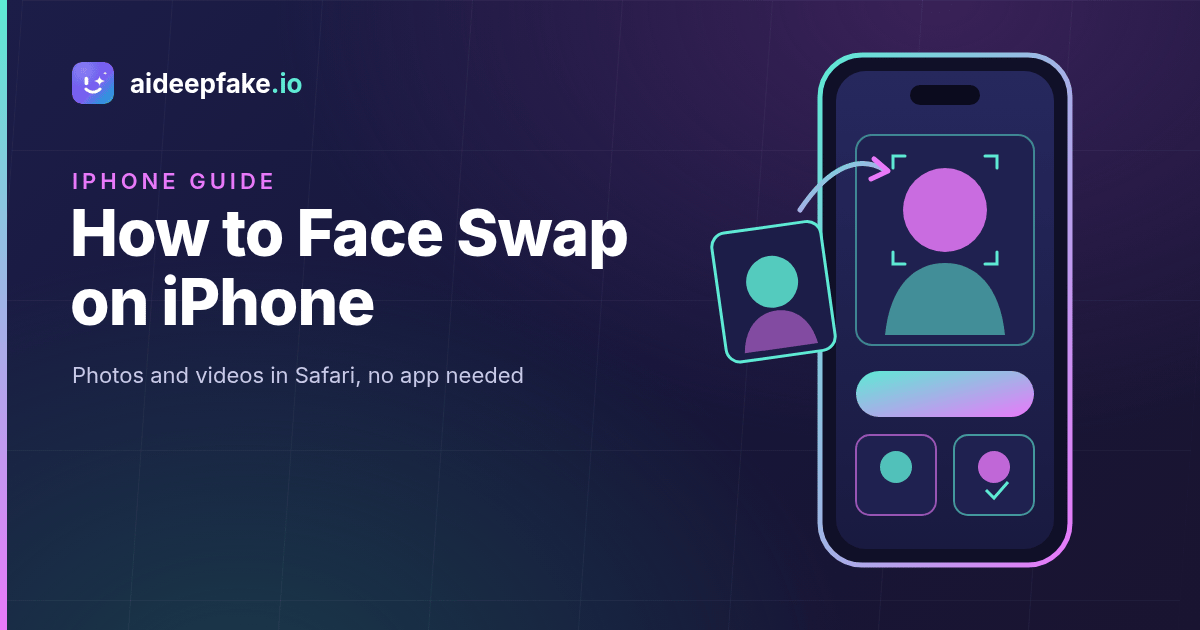
Want to learn how to face swap on iPhone without installing yet another app? You can do it in Safari in a few minutes. Your iPhone already has the two things a good swap needs: a sharp camera for the source selfie and a library full of photos and clips to use as targets. This guide shows how to face swap on iPhone with the browser-based aideepfake.io tool, covering photos and videos, the iPhone-specific settings that cause most upload errors, and how to save the result back to your Photos app.
Nothing here requires a powerful phone. The swap runs on a server, so an older iPhone gets the same quality as the newest model. What matters is the material you feed it.
Can you face swap on iPhone without an app?
Yes. Most results for "face swap app" in the App Store are subscription apps that ask for camera access, photo library access and a weekly fee before you see a single result. A web tool avoids all of that: you open a page in Safari (or Chrome), upload two files and download the result. There is nothing to install and nothing running in the background afterwards.
On aideepfake.io you can do two kinds of swaps from your phone:
- Photo swaps: put a face from one photo onto a person in another photo with the photo face swap tool.
- Video swaps: put a face from a photo onto a person in a clip with the video face swap tool. The original audio is kept.
If you prefer something that feels like an app, open the page in Safari, tap the Share button and choose Add to Home Screen. You get an icon that opens the tool directly. It is still the website, just one tap away. Our face swap app page explains what the web version does compared with downloadable apps.
Be clear about the limits before you start. The tool swaps faces in photos and videos you upload. It does not run a live camera filter or a real-time swap during a FaceTime call, it does not export GIFs, and it does not swap whole heads or bodies. In a picture with several people you can replace one chosen face, or replace every detected face with the same source face; giving each person a different face in one pass is not supported. Jobs run one at a time rather than in batches.
What you need before you start
Every swap uses two inputs:
- A source face: a still photo of the person whose face you want to use. It decides the identity in the result.
- A target: the photo or video that keeps its body, clothes, background and motion. Only the face changes.
The source must be a JPEG, PNG or WebP image under 10MB. A target photo uses the same formats. A target video can be MP4, MOV or WebM, up to 100MB and up to 300 seconds long, or up to 90 seconds when face enhancement is on. You also need a free account, because credits are tied to it.
The iPhone photo format problem (HEIC) and how to avoid it
Here is the part that trips up most iPhone users. By default the iPhone camera saves photos as HEIC, a high-efficiency format. The face swap engine does not open HEIC (or HEIF and AVIF) files, so a raw HEIC file will be rejected.
In practice this rarely blocks you, because of how Safari handles uploads. When you tap the upload box and pick a picture from Photo Library, iOS normally hands the website a JPEG copy of the photo automatically. The trouble starts when you pick the file through Choose File from the Files app, or upload from a Mac where the photo was exported as HEIC. Those files arrive as HEIC and are refused.
If you hit a format error, use one of these fixes:
- Pick from Photo Library instead of Files. This is the simplest fix and works for most people.
- Switch the camera format for future photos. Go to Settings, then Camera, then Formats, and choose Most Compatible. New photos are then saved as JPEG.
- Take a screenshot of the photo. Screenshots are saved as PNG, which is accepted. Crop it to the face area first so it stays sharp.
Videos are simpler. iPhone videos are MOV or MP4 files, both of which are accepted. The real limit for video is file size, which we cover below.
How to face swap on iPhone: photos in 5 steps
Step 1: Take or choose a strong source selfie
The source photo matters more than any setting. Use the front camera in good, even light, such as facing a window during the day. Hold the phone at eye level, look straight into the lens and keep your hair, hands and sunglasses away from your face. Turn off Portrait mode beauty effects and heavy filters, because smoothing removes the skin detail the swap needs. A neutral or slight smile works best.
If you prefer, tap the upload box and choose Take Photo to shoot the source directly from the tool.
Step 2: Choose the target photo
Pick a photo where the face you want to replace is reasonably large, well lit and facing roughly the same direction as your source. A front-facing source on a front-facing target gives the most natural result. Group shots work too: you can lock the swap to one chosen face, or replace every detected face with the same source face.
Step 3: Upload both files
Open the photo face swap page in Safari. Tap the source box and choose your selfie from Photo Library, then tap the target box and choose the photo you want to edit.
Step 4: Choose options
The defaults are fine for most photos. Face enhance rebuilds fine skin texture inside the swapped face and helps when the source is a little soft. Frame enhance upscales the whole image, which is useful for older or compressed photos, such as pictures saved from a group chat. Neither option costs extra credits.
Step 5: Swap and save to Photos
Tap Swap Faces. A photo swap costs 15 credits and usually finishes in seconds. When the result appears, download it. Safari saves downloads to the Files app (On My iPhone, then Downloads). To move the picture into your Photos library, open it in Files, tap Share and choose Save Image.
How to face swap a video on iPhone
Video swaps follow the same pattern with a few extra iPhone-specific checks.
Keep the file under 100MB. A minute of 4K iPhone video can easily exceed 100MB. For face swaps, 1080p is plenty. Go to Settings, then Camera, then Record Video, and choose 1080p at 30 fps before you film. For an existing clip, trim it first.
Trim in the Photos app. Open the clip, tap Edit, drag the yellow handles on the timeline to the part you need, then tap Done and choose Save Video as New Clip. Short clips process faster and cost fewer credits, because credit cost follows the length of the file you upload.
Upload and run. Open the video face swap tool, add your selfie as the source and the trimmed clip as the target, then tap Swap Faces. A video swap starts from 20 credits and most clips are ready in one to five minutes. The processing happens on the server, not on your phone, so battery and storage are not an issue. Keep the page open while it runs; it checks for the result automatically.
Save the video. Download the result, open it in Files, tap Share and choose Save Video to put it in your camera roll.
For a deeper walkthrough of footage choice and settings such as detector score and reference frames, read our guide on how to make a face swap video.
Tips for better results on a phone
Phone photos have their own quirks. These checks fix most disappointing results:
- Avoid the ultra-wide lens for selfies held close. Wide lenses at arm's length stretch the nose and forehead, and that distortion carries into the swap. Step back a little or use the main camera with a timer.
- Match the light. Warm indoor light on the source and cold daylight on the target is the most common skin-tone mismatch.
- Clean the lens. A smudged lens produces a hazy selfie, and the haze shows up in every frame of a video.
- Skip messaging app copies. Photos saved from chats are heavily compressed. Ask for the original or switch on frame enhance.
- Keep the face big in video. If the person shrinks to a small figure in a wide shot, detection struggles and the swap may flicker.
Our list of realistic face swap tips covers angle, expression and lighting in more detail.
Face swap with a celebrity on your iPhone
You do not always need your own source photo. The celebrity face swap library has pages where a famous face is already loaded, so you only upload the target. For example, the IShowSpeed face swap page lets you drop a clip of yourself or a friend in and see it with the streamer's face. Celebrity swaps cost the same credits as regular swaps. Share them clearly labeled as fan-made AI parodies and never present them as real footage.
Seasonal themes are popular on phones too. With family photos piling up this month, the Thanksgiving face swap page collects ideas for dinner-table edits that everyone in the picture agreed to.
Free credits, watermark and pricing
Every account can claim 10 free credits a day through the daily check-in, which adds up to a free photo swap every couple of days. Results carry an aideepfake.io watermark by default. Any completed purchase, either a credit pack or a subscription, unlocks a switch that turns the watermark off for new jobs, as explained on the face swap no watermark page. Current plans and credit packs are on the pricing page, and purchased credits never expire.
If you build an iOS app and want to offer face swaps inside it, the face swap API accepts the same photo and video jobs as the website.
Privacy and responsible use
Only upload faces you have permission to use, whether that is your own face or that of a friend who agreed. Never create sexual content of a real person, never create anything involving minors, and never use a swap to deceive, defraud, harass or impersonate anyone. Do not pass off a swapped photo or video as a real recording. When you share an edit, label it as an AI edit.
FAQ
How do I face swap on iPhone for free?
Open aideepfake.io in Safari, sign in and claim the 10 daily check-in credits. A photo swap costs 15 credits, so two days of check-ins cover one photo swap. Results include a watermark until you make any purchase.
Why does my iPhone photo fail to upload?
It is probably a HEIC file chosen through the Files app. Pick the photo from Photo Library instead, take a screenshot of it, or set Settings, Camera, Formats to Most Compatible.
Can I face swap a video on iPhone?
Yes. Upload a MOV or MP4 clip up to 100MB and up to 300 seconds long (90 seconds with face enhancement). Record at 1080p or trim long clips in Photos first.
Does it work on Android too?
Yes. The tool runs in any modern mobile browser, including Chrome on Android. The same format and size limits apply.
Is there a live or real-time face swap for iPhone?
No. aideepfake.io swaps faces in photos and videos you upload; it does not offer live camera effects or real-time video calls.
Start your first iPhone face swap
Take one sharp selfie by a window, pick one photo or a short clip from your library and open the aideepfake.io face swap tool in Safari. Your first swap takes a couple of minutes, and once you know how to avoid the HEIC and file-size traps, face swapping on iPhone is as easy as sharing a photo.